Monday, 21 September 2015

How to install ClipBucket via Softaculous (Auto installation of clipbucket)

Installing the ClipBucket application on your website via the Softaculous autoinstaller


The Clip Bucket application is fully supported by the Softaculous autoinstaller which means that with few clicks you will be able to install it on your hosting package with us. In this tutorial we will review the whole installation process of the Clip Bucket application via the Softaculous autoinstaller.

Step 1 Accessing the installation page


In order to begin with the installation you will need to login into your cPanel service and locate the Softaculous icon.
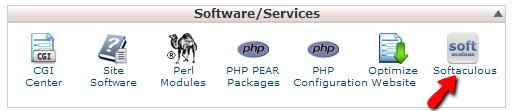
accessing-softaculous

Then you will need to find the Clip Bucket application either by searching for the same in the “Search” feature locate in the upper right corner of your screen or to locate the application in the “Video” category included in the left vertical category list.
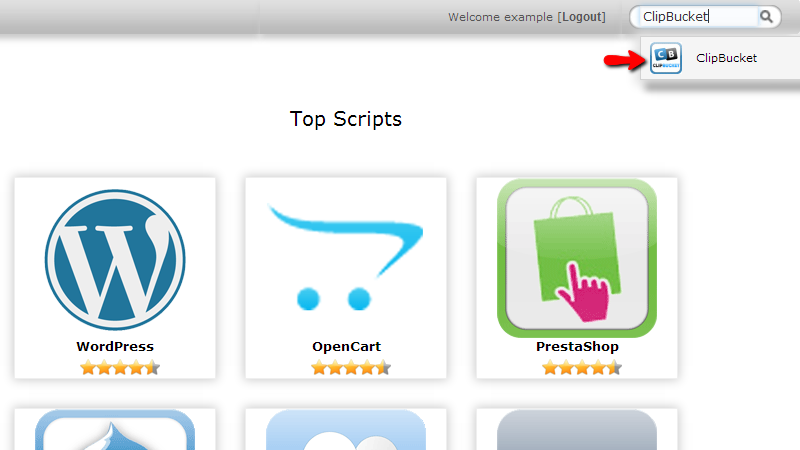
searching-for-clip-bucket

Once you find it you will need to click on the name of the application and you will be redirected to the “Overview” page for the script where you will be presented with basic information for the script and the supported version.
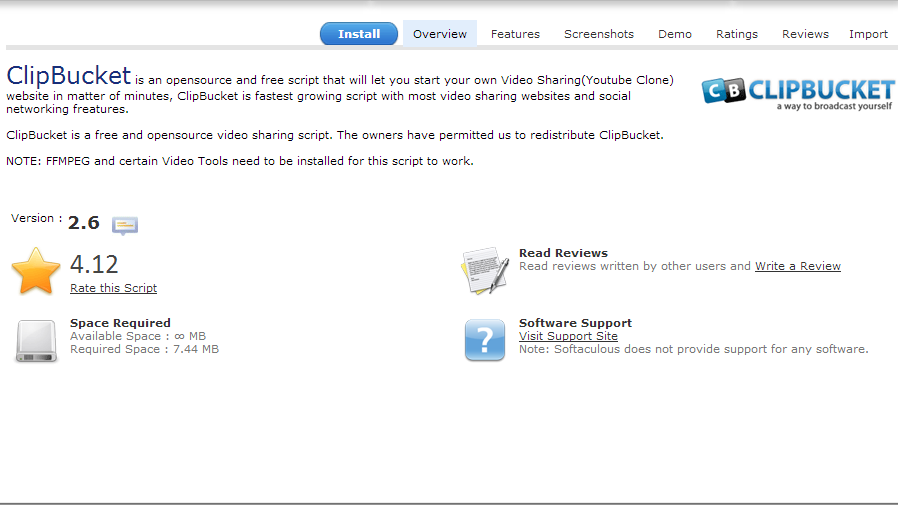
searching-for-clip-bucket

Then you can proceed with the installation by clicking on the “Install” tab right next to the “Overview” tab you are currently at.

Step 2 Configuring the installation


Before the Softaculous autoinstaller can install the application for you there are few settings you will need to configure and all of those will be presented in the tab you have just clicked on – “Install”.

The settings are conveniently separated on few sections which we will present you with in the next lines of this tutorial.

First you will notice the “Software Setup” section. The options you will need to configure there are:

  • Choose Protocol – The prefix of the URL you will be accessing your Clip Bucket installation.
  • Choose Domain  - The domain where your Clip Bucket application should be installed. Usually in this drop-down list you will find all of the domains associated with your hosting package with us. These can be subdomains or addon domains.
  • Database name - The name of the database which the script will be using. Note that you can completely leave this field as it is due to the fact that the Softaculous autoinstaller will created the database and the user for you.
  • Cron job - The cron Job of the application. Please leave it as it is.
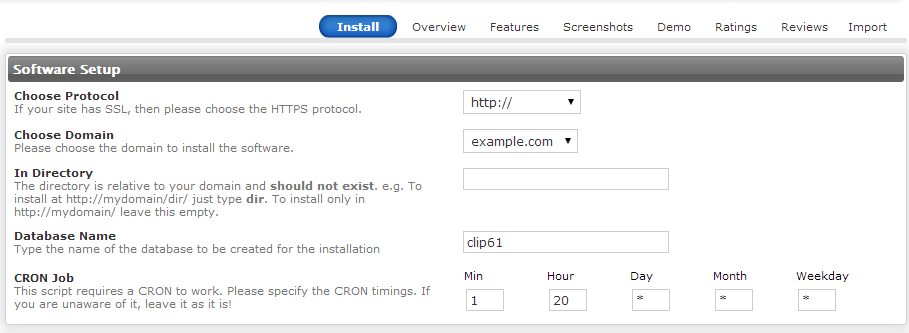
software-setup-configuration

The next section is called “Site Settings” and there you will find the simple settings for your website such as:

  • Site name – The name of your website
  • Site Description – The description of your website
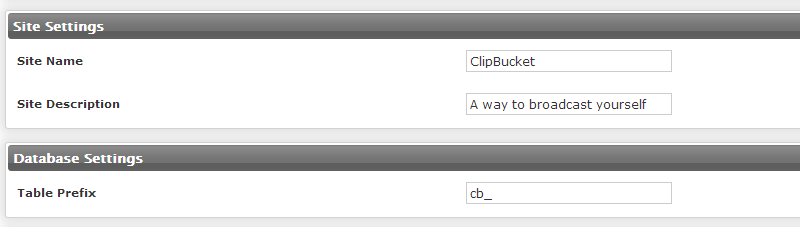
settings-configuration

The next section will be the “Database Settings” section where you will need to configure only the prefix of your database.

The final section is called “Admin Account” and there you will be able to configure the information for the admin account which will be created automatically with the setup.
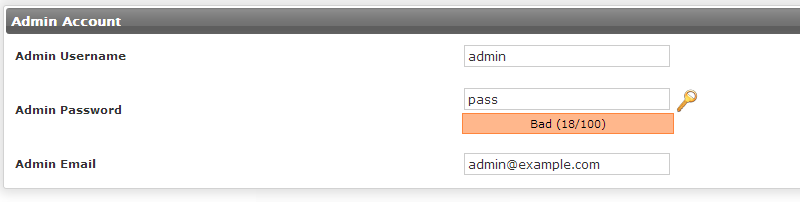
admin-account-settings

Now, before you can proceed with the installation there is one additional section which is displayed but is closed. This section is called “Advanced options” and there you will be able to configure the backups for the application which will be automatically performed by the Softaculous application.

Finally when you are ready with all of these settings please press the “Install” button located at the bottom of the page so the installation process can begin.
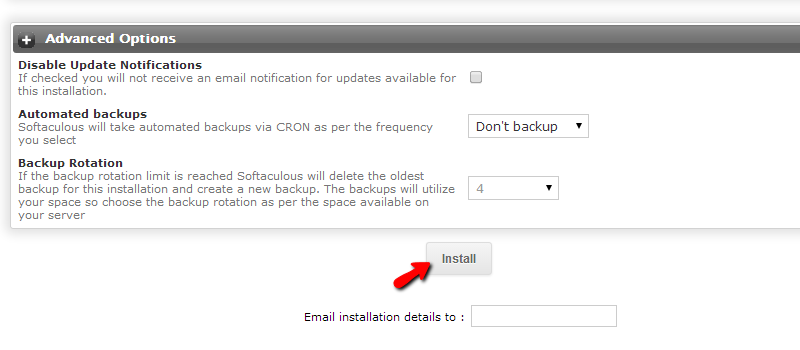
advanced-options-and-installation

After few seconds you will have fully functional Clip Bucket installation and you will be presented with the access details for the same on the next page and on your email address.
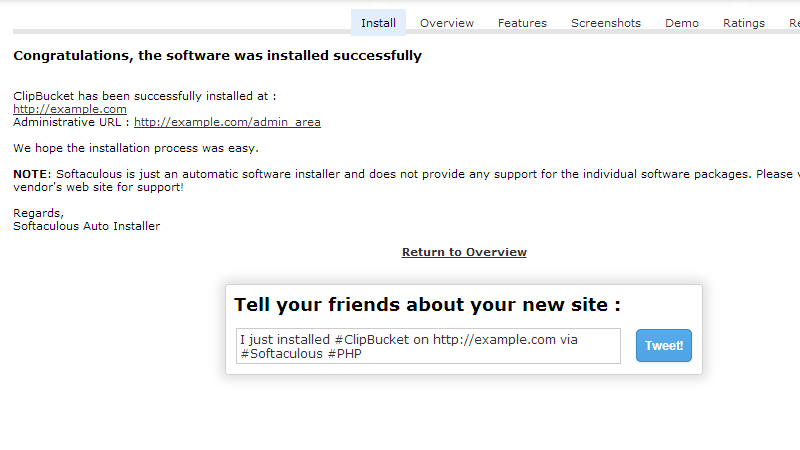
installation-finished

Congratulations! You have successfully installed the Clip Bucket application via the Softaculous autoinstaller!

How to install ClipBucket manually 2015-16

Installing the ClipBucket application on your website manually


In order to use the Clip Bucket application you will need to install it on your website. The installation process is fairly simple and in this tutorial we are going to show you how to complete the manual installation process using the provided installer from Clip Bucket.

Step 1Preparing the files and the requirements for the installation 


Before you can install the application you will need to prepare the installation files. You can download these files at the official download page of the Clip Bucket application.

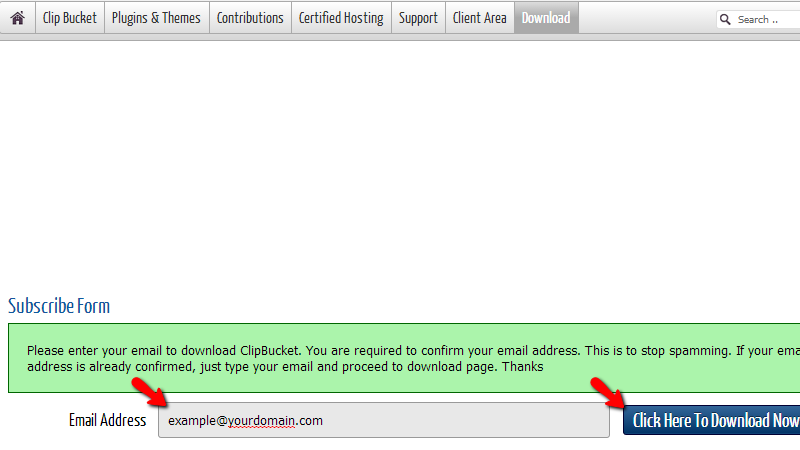
There you will need to subscribe by filling your email address and by clicking on the “Click Here To Download Now” the Clip Bucket team will send you a confirmation email.

downloading-clip-bucket

The content of the email you will receive will be similar to the following:

downloading-clip-bucket

Please click on the provided link there and you will be redirected to the download page for the application where you will need to simply click on the “Download” button:

downloading-clip-bucket

Once you download the archive with the installation files you will need to extract the archive on your local computer.

extracting-clip-bucket

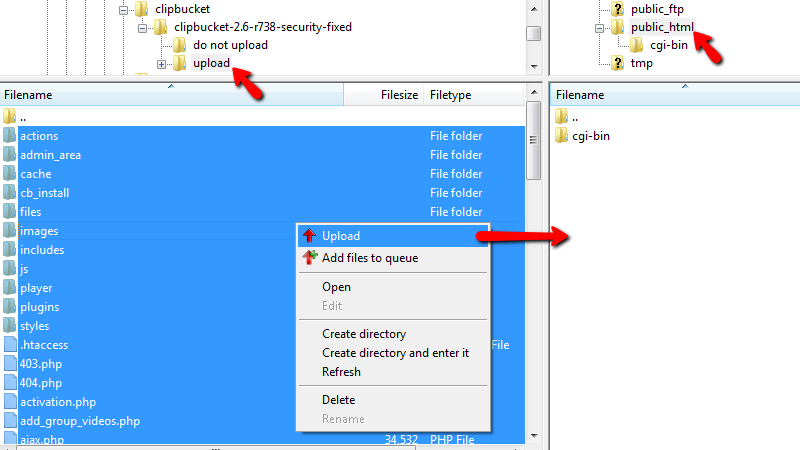
The folder you will receive contains 2 inner folders – “do not upload” and “upload”. Respectively you will need only the “upload” folder as there you will find the installation files.

In order to upload the installation files to your website you will need to connect to the FTP service for your package with us. If you are not sure that you are able to use the FTP service please check our FTP tutorial series.

Once you are connected to the FTP service for your package you will need to access the folder of your hosting space with us where the application should be installed in.

uploading-clip-bucket

The last preparation you should handle is to create a database and user associated with the database. This can be easily achieved via your cPanel > MySQL Database Wizard.

Step 2Initiating the installation script and performing the installation procedure 


Once you have uploaded the files for example in the “public_html” folder of your account you will need to initiate the installation script. This can be easily achieved if you simply access yourdomainame.com or yourdomainname.com/subfoldername if you are about to perform the installation of the application in a subfolder.

starting-the-installation

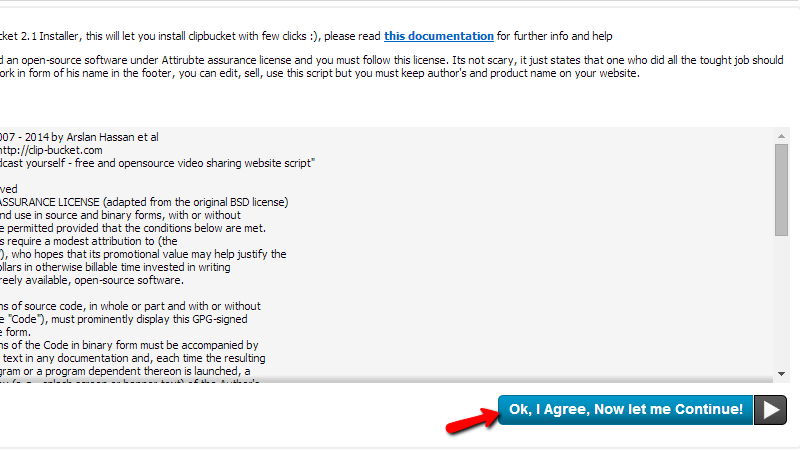
The first screen from the installation process is related to the license agreement. Please read it carefully and press the “Ok, I Agree, Now let me Continue!” button of course if you are agree with the license agreement.

On the next screen the installation script will check the main requirements of the script. Now, even if some of them are marked in red you should simply press the “Continue To Next Step” button and after the installation you will be able to configure the correct paths to the services.

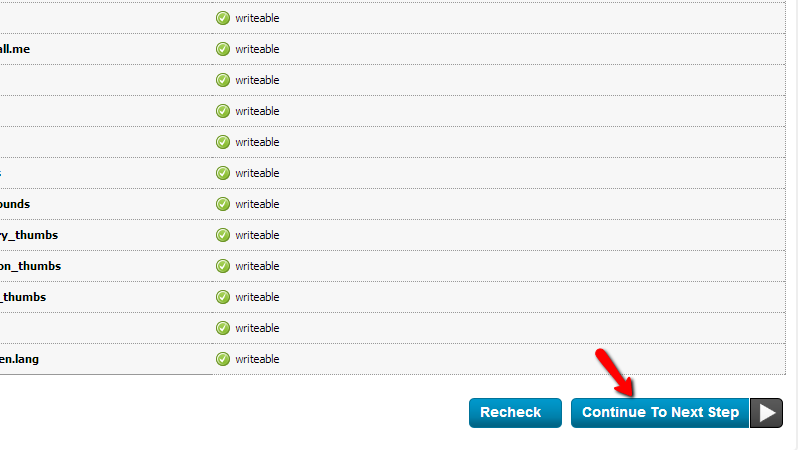
The next screen will present you from the result of the file/folders permissions check. If you have followed the upload instructions in Step 1 of this tutorial all of the permissions should be properly configured and all of them should be marked in green. Please click on “Continue To Next Step” button so you can be able to proceed with the installation.

checking-directory-permissions

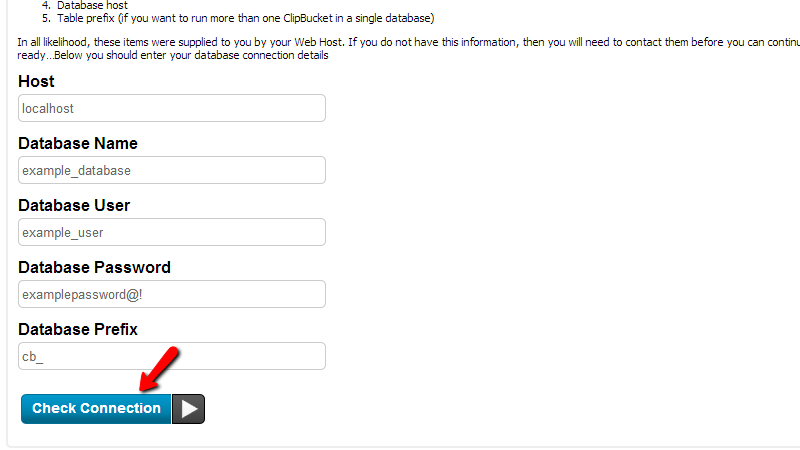
On the next page you will need to configure the database your application will be using. Note that you should have already created the database and the username to operate with it in the end of Step 1.

The values you will need to fill on this page are:

  • Host  - it should be automatically filled with the “localhost” string and you should leave it that way.
  • Database Name – the name of your database. Note that the database name contain also the username of your account with is as prefix – example_database, where example is the username of your account and database is the database name you have set when you were creating the database.
  • Database User – The username of user assigned to the created database – example_username, where example is the username of your account with us and username is the actual username you have set when you were creating the user.
  • Database Password – The password for the database user you have created.
  • Database Prefix – Usually this field should be predefined as “cb_” and you should probably leave it that way or change it if you would like the tables in the database of your website to be with that prefix.

configuring-mysql-database

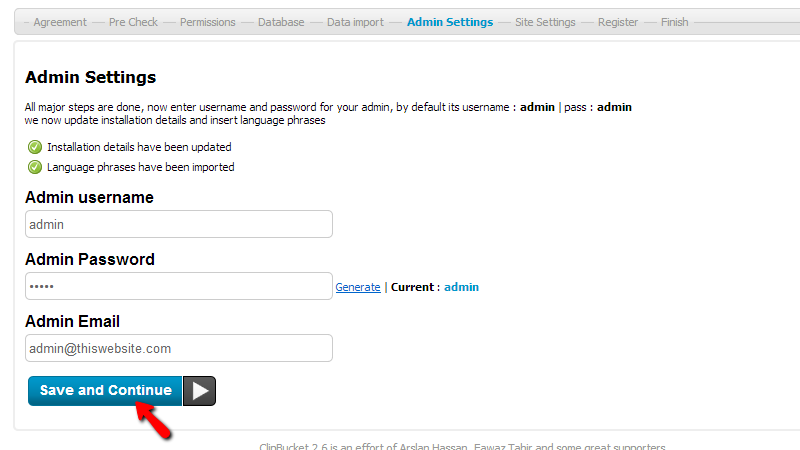
On the next page you will notice that the installation script will deploy the tables in the database and also modify the required files. Once the process is finished you will be presented with the Admin Settings page where you will need to configure the “Admin username”, “Admin Password” and of course the “Admin Email”. Once you are ready please click on the “Save and Continue” button so you can proceed.

admin-account-settings

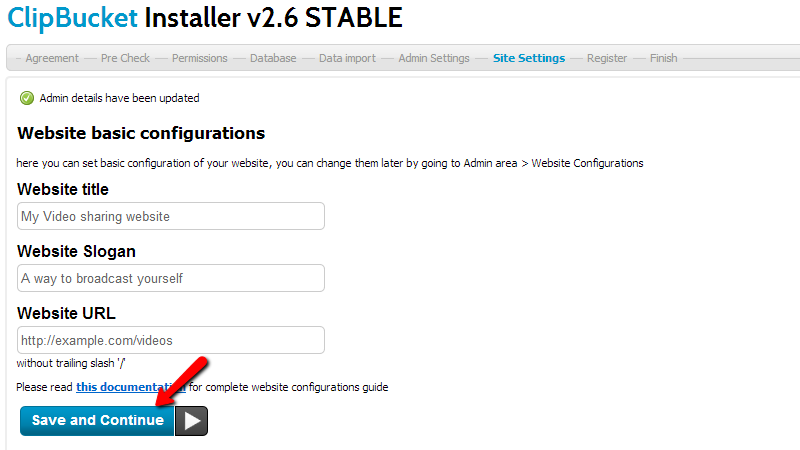
On the next page you will need to configure the “Website basic configuration”. There you will find the following fields:

  • Website Title – The title of your website
  • Website Slogan – The slogan of your website
  • Website URL – The URL to the location where you can access the Clip Bucket application.

website-basic-configuration

Once you are ready please click on the “Save and Continue” button so you can proceed with the setup.

On the next page you will be presented with the option to register your installation and you should do so by clicking the “Register and Finish” button.

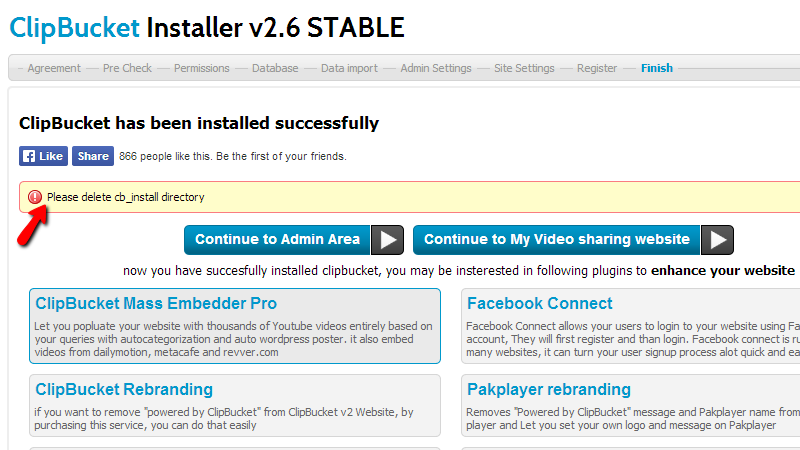
Next you will be redirected to the final page of the installation process where you will be instructed to delete the “cb_install” folder.

registering-your-software

The directory can be deleted either via the FTP service you have uploaded the files with or you can also delete it via the File Manager feature of the cPanel service.

Congratulations! You have successfully installed the Clip Bucket application manually on your hosting account with us!